DJ Crates: How to Organize Music and Prepare Better DJ Sets
A practical guide to organizing music for DJ sets, preparing track selections and understanding how GYSNOIZE DJ Crates fits into a professional DJ workflow.
A practical guide to organizing music for DJ sets: what a crate is, how to build crates that still make sense six months later, how smart crates save time, and how GYSNOIZE DJ Crates fits into the work you do before a gig.
Every DJ knows the moment: the set starts in twenty minutes, the library holds thousands of tracks, and the one record you need is somewhere between a folder called «new» and a playlist called «new 2». Good mixing starts long before the first transition. It starts with a library you can find your way through under pressure.
What is a DJ crate?
A crate is a named collection of tracks, taken from the record boxes DJs carried to gigs. In software it is a list, not a copy: the same track can sit in several crates without being duplicated on disk. You build crates by hand («Warm-up», «Closing records», «Saturday at the club»), while a smart crate fills itself from rules such as a tempo range or a key.
Serato describes the same idea in its own documentation on crates and Smart Crates: a smart crate updates automatically when tracks match its rules. The principle is common to DJ software, so the habits in this guide apply whatever you play on.
Why organization matters before a set
- Speed under pressure — reading the room leaves no time for searching.
- Better flow — tempo and key in view make smoother changes easier to plan.
- Fewer repeats — a clear history of what you prepared avoids playing the same ten tracks every night.
- Room for the unexpected — a crate of alternatives lets you change direction without leaving the mix.
Five ways to structure your crates
- By energy — warm-up, build, peak time, closing.
- By tempo — ranges such as 120–124 and 124–128 BPM, so a change of pace is one click away.
- By key — Camelot keys like 8A or 9B group tracks that tend to mix harmonically.
- By event — one crate per gig, so you can see what you prepared and what you actually played.
- By status — new arrivals, to review, tested in the club.
Most DJs combine these. A sensible base is a few hand-made crates for events and moods, plus smart crates for tempo and key that keep themselves up to date.
Habits that keep a library usable
- Tag on arrival. Title, artist, genre, BPM and key are easiest to fix the day a track comes in.
- Write short notes. «Long intro, mix out at the breakdown» saves a pre-listen on the night.
- Keep crate names plain. «Peak 126–130» still means something next year; «stuff» does not.
- Review and archive. A crate you never open is noise. Rename it, merge it or delete it.
Inside GYSNOIZE DJ Crates: A Real Walkthrough
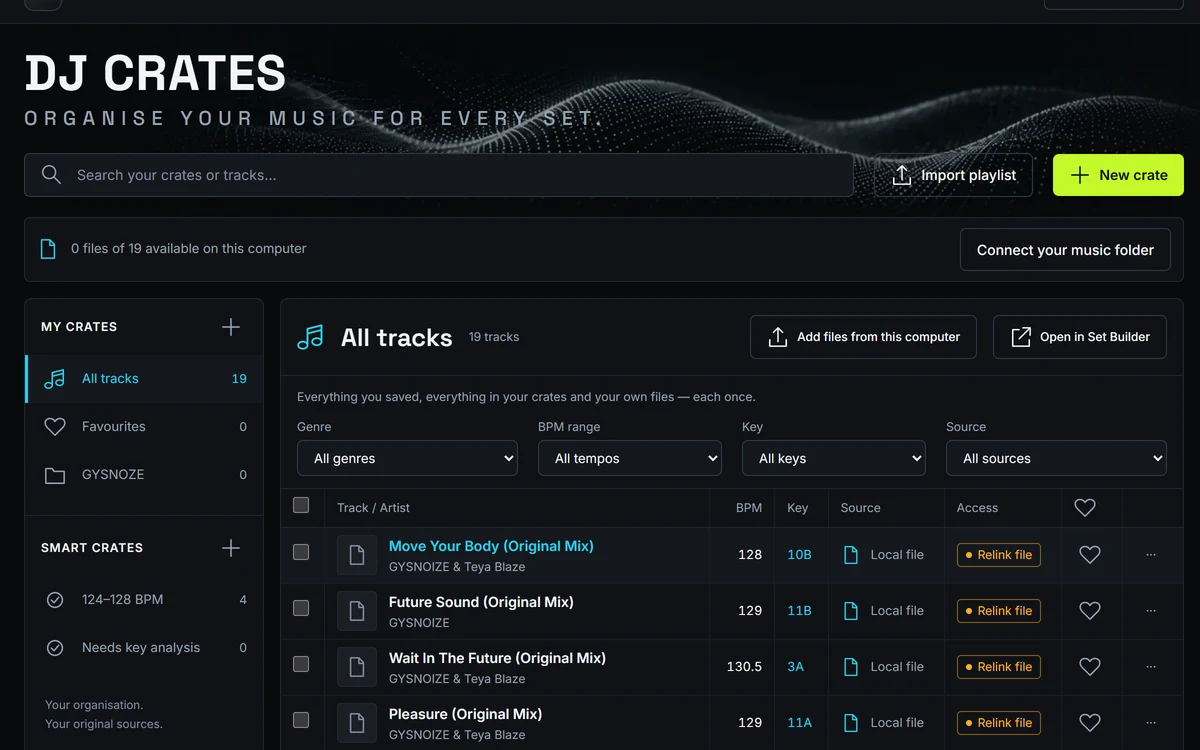
DJ Crates lives in the DJ area of a GYSNOIZE account. The screenshots below were taken on the live site with a real DJ account holding 19 tracks of GYSNOIZE's own music, added as local files.
Step 1: Open DJ Crates
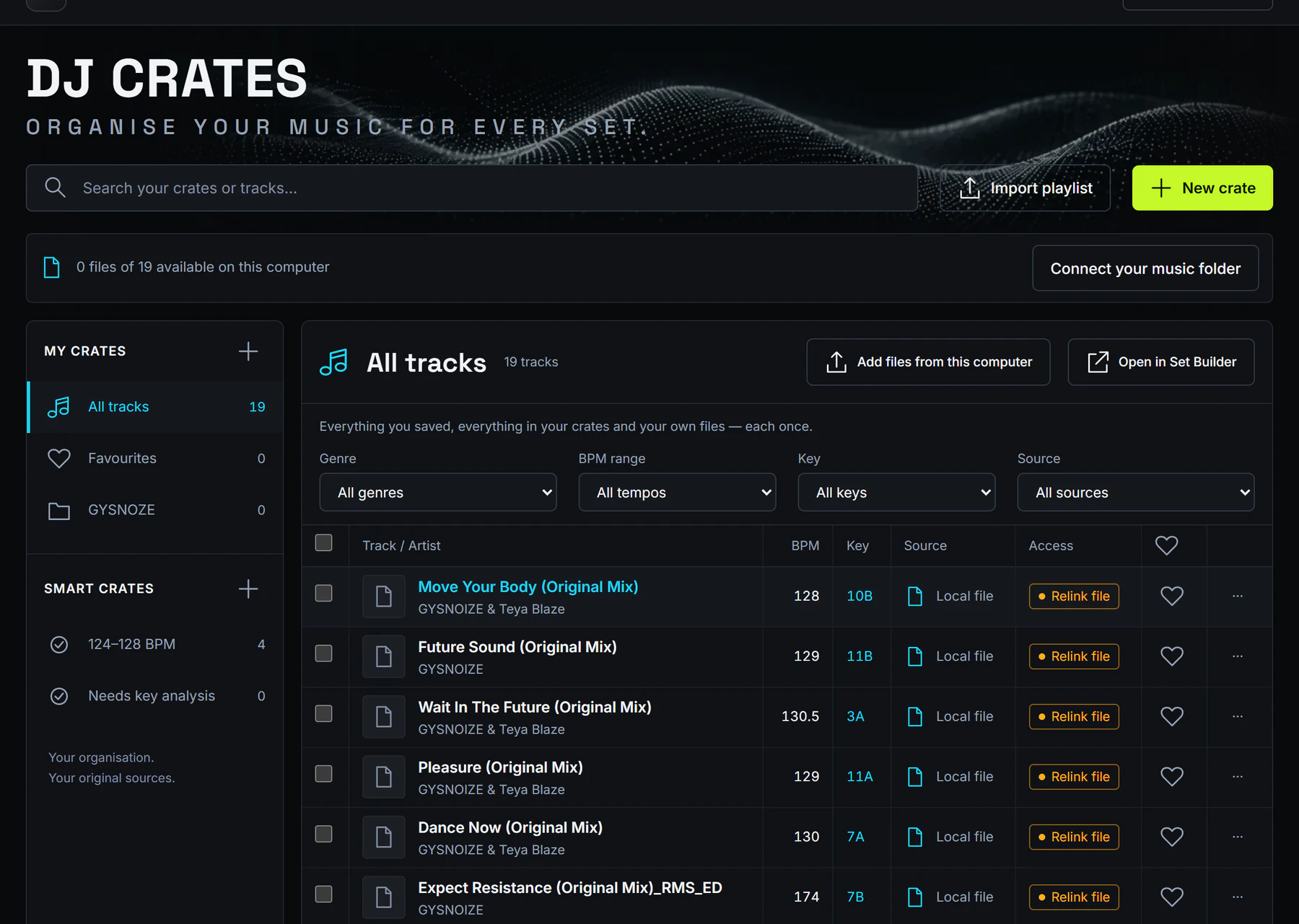
The page opens on All tracks: everything you saved, everything in your crates and your own files, each once. On the left are My crates (All tracks, Favourites and the crates you make) and Smart crates. The table shows each track's BPM, key in Camelot notation, source and access, with filters for genre, BPM range, key and source.
Step 2: Add your own files without uploading them
Add files from this computer or Connect your music folder reads a description of each file in your browser: title, artist, genre, BPM and key from its tags, length, name, size and format. The audio itself never leaves your computer. When the browser no longer has access to a file, the Access column shows Relink file, and the counter above the table tells you how many of your files are available on the computer you are using.
Step 3: Build crates and add notes
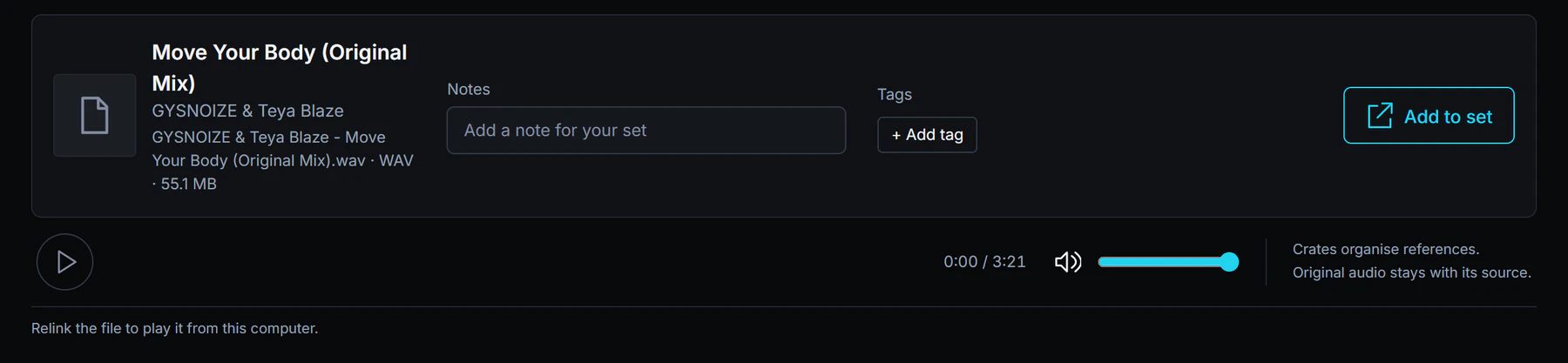
New crate makes a hand-built crate. Select a track and the panel at the bottom gives you a Notes field (up to 500 characters) and Add tag (up to 12 tags per track) for the details you want on the night. A heart puts a track in Favourites; on a catalogue track it also saves it to your library. Deleting a crate never deletes the recordings: they stay in your library.
Step 4: Let a smart crate fill itself
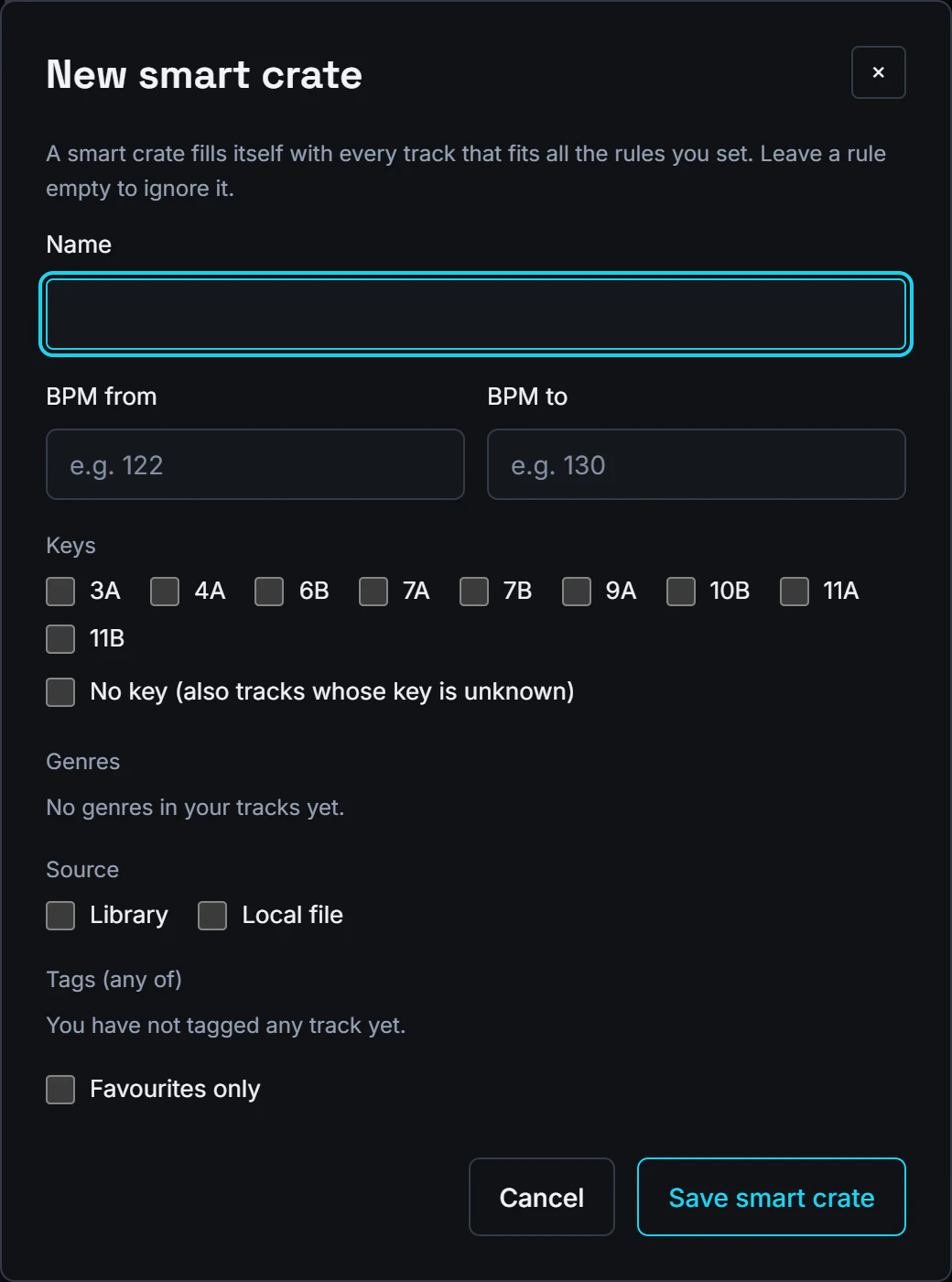
Create a smart crate opens a rules form: a BPM range, one or more keys, tracks whose key is not yet known, genres, source (library or local file), tags and favourites. Leave a rule empty to ignore it. Tracks appear in the crate by themselves when they fit. The account above already has «124–128 BPM» (4 tracks) and «Needs key analysis».
Step 5: Import a playlist you already have
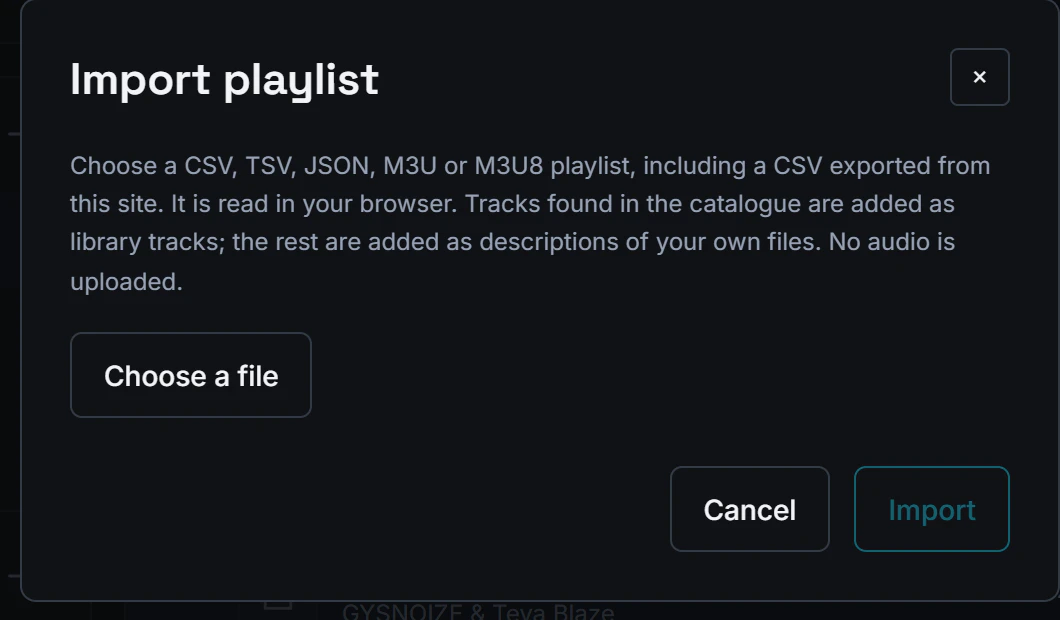
Import playlist accepts CSV, TSV, JSON, M3U and M3U8 files, including a CSV exported from the site. The file is read in your browser and you see a preview before anything is imported. Tracks found in the GYSNOIZE catalogue are added as library tracks; the rest become descriptions of your own files. No audio is uploaded.
Step 6: Export a crate or open it in Set Builder
A crate can be exported with Export CSV (Rekordbox / Serato), a plain CSV file you can keep or bring into your DJ software's own import. This is a file export, not a live connection to Rekordbox or Serato. Open in Set Builder sends an ordered copy of the tracks to the Set Builder, where you plan the running order; changing the set never changes the crate.
Step 7: Use it on your phone
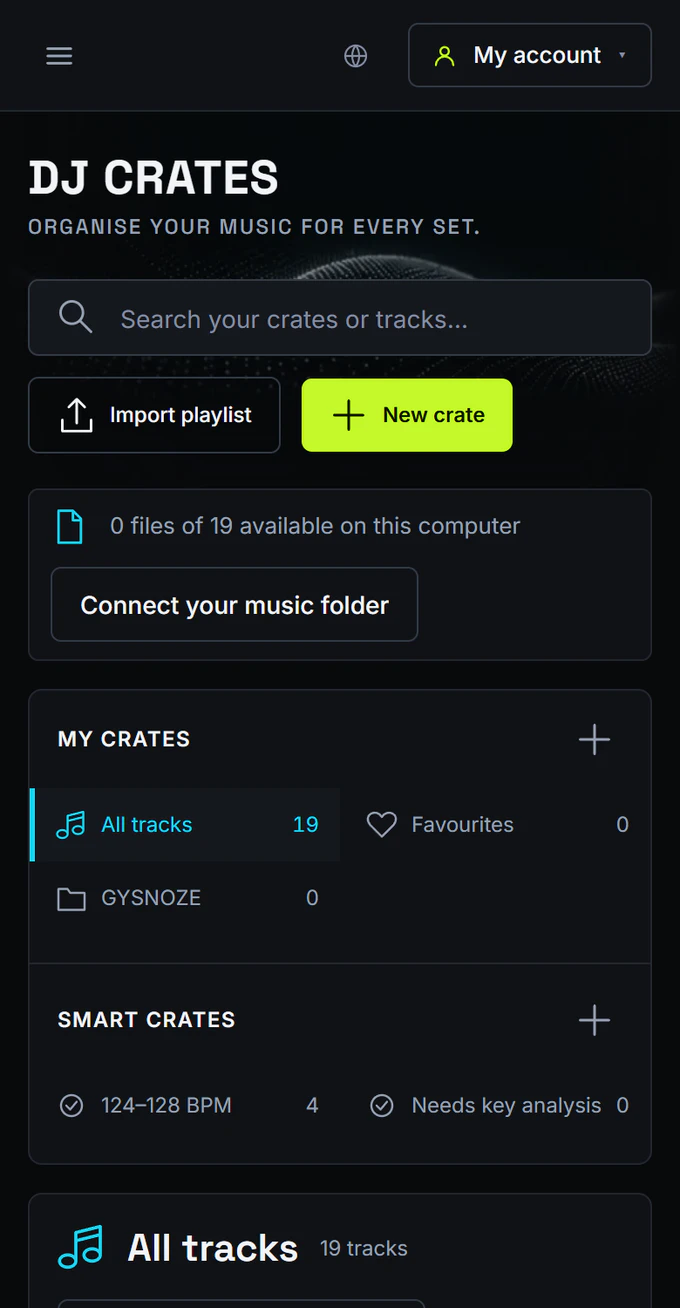
On a phone the same page stacks: search, Import playlist and New crate at the top, then your crates and smart crates, then the tracks. It is handy for checking what you prepared on the way to a gig.
What DJ Crates does and does not do
| What we verified | |
|---|---|
| Audio | Crates organise references. Original audio stays with its source; your own files are never uploaded. |
| BPM and key | Read from your files' tags. Missing values are found with the separate BPM & Key tool. |
| Smart crates | Rules for BPM, key, no key, genre, source, tags and favourites; up to 20 smart crates. |
| Import | CSV, TSV, JSON, M3U, M3U8, read in the browser, up to 500 tracks at a time. |
| Export | Export CSV (Rekordbox / Serato) per crate. A file, not a sync. |
| Playing out | DJ Crates is preparation. You still play from your own DJ software and hardware. |
Tracks without a tempo or key can go through BPM & Key in the same DJ area. It finds BPM and key and writes them into your files together with title, artist, genre and label, for MP3, WAV, AIFF and FLAC.
A simple weekly routine
- Add the week's new tracks and fix their tags.
- Run anything without a key through BPM & Key; it leaves «Needs key analysis».
- Listen through new arrivals and drop the keepers into crates by energy or event.
- Write one-line notes on intros, breakdowns and outros.
- Before a gig, open the event crate in Set Builder and plan a rough order, leaving room to change it.
Promos you receive are part of the same routine. Our guide to the DJ Promo Inbox covers listening, rating and keeping incoming music in order, and the DJ booking guide covers the work around the gig itself. When a crate becomes a set, our guides on how to build a DJ set and checking whether a track is club-ready cover the next steps.
Frequently asked questions
Are my music files uploaded to GYSNOIZE?
No. DJ Crates reads a description of each file in your browser and keeps that. The audio stays on your computer.
Does DJ Crates sync with Rekordbox or Serato?
No live sync. You can export a crate as a CSV file labelled for Rekordbox and Serato and import playlists from common formats.
What is the difference between a crate and a smart crate?
You fill a crate by hand. A smart crate fills itself with every track that fits its rules, and keeps doing so as your library changes.
Can I play music from DJ Crates?
You can listen to a linked local file or a catalogue preview to check it. For the gig itself, use your DJ software.
Which plan includes DJ Crates?
The DJ plans and what each includes are listed on the For DJs page.
Organize Your DJ Music with GYSNOIZE DJ Crates
A library you can trust under pressure leaves your attention for the dance floor. Build a few crates, let smart crates do the sorting, and keep your notes where you will see them on the night.