Music Video Maker for Musicians: Create Visualizers, Music Videos & Social Clips
A practical guide to turning a track into video for YouTube, Reels and TikTok — formats, planning, AI and non-AI workflows — with a real walkthrough of GYSNOIZE Music Video Studio and a playable export.
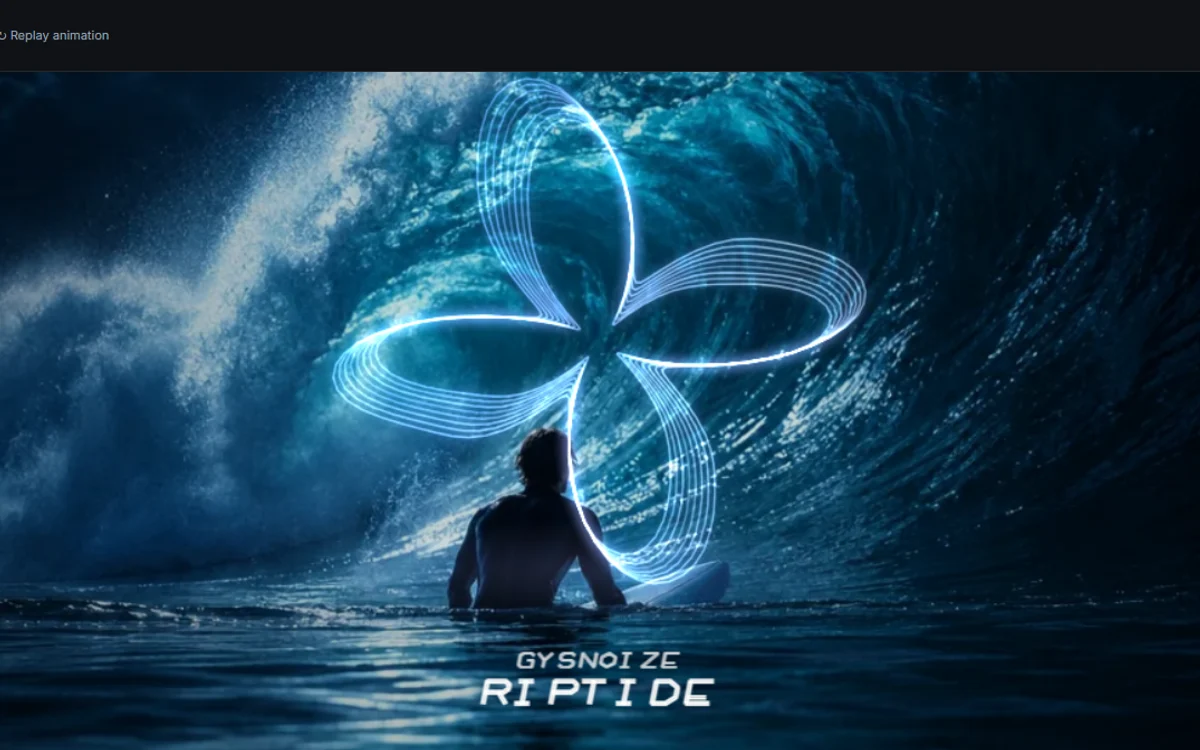
A practical guide to turning your music into video for YouTube, Instagram, TikTok and other promotional channels — from the first creative idea to a finished file you can share.
Music is experienced through sound, but discovery often begins with an image on a screen. A listener may meet an unfamiliar track through a short vertical clip, an animated visualizer or a video shared by another fan, and remember a visual moment before they remember the artist's name.
A traditional music video can involve a location, a camera crew, editing and colour grading. Those methods are valuable, but they are not always practical for a producer who releases often, a DJ preparing social content or an independent artist on a limited budget. A music video maker or visualizer tool offers another path: combining your own music, artwork, motion design and, where you choose, AI-generated footage into formats for different audiences.
This guide explains the formats, how to plan a video around a song, how AI and non-AI workflows differ, and what to check before export. In the second half we show what GYSNOIZE Music Video Studio actually does today, with real screenshots and a real export of the GYSNOIZE single «Riptide».
What is a music video maker?
The term covers several kinds of tools. Some combine a track with existing artwork and motion templates. Others offer timeline editing, footage assembly, lyric overlays or animated graphics. Some use generative AI to produce visual material from a written description or reference images. Before choosing one, decide which of these you actually need.
Why video matters for independent artists
- A recognisable visual identity. Consistent colours, typography and imagery connect a release across channels.
- More ways to share a release. A single track can become a full-length visualizer, a vertical teaser and a square post.
- Context around the music. Visuals can carry the mood of a track to someone who has not heard it yet.
- Reusable assets. One concept can serve the release week, live-show announcements and later reminders.
Video can support discovery, but it does not guarantee more streams. Results depend on the music, the audience, the campaign and the creative execution.
Music video, visualizer or lyric video?
- Full music video — live action, animation, a story or a performance, usually with more editing and planning.
- Music visualizer — motion design or imagery that accompanies the track, often audio-reactive, without a narrative. A strong fit for electronic and instrumental music.
- Lyric video — the words presented visually, timed to the vocal. It needs the correct lyrics and timing; an ordinary export does not include synchronised lyrics unless the tool supports that workflow.
Choose by song and goal. A narrative suits a full video, a high-energy instrumental often suits a visualizer, and a vocal single may benefit from text-led content. One release can use more than one format.
How to plan a music video before opening an editor
- What is the track's identity — genre, tempo, energy and emotional tone?
- Who is the viewer — current fans, new listeners, promoters or collaborators?
- Where will the video be published?
- Which footage, artwork or images do you already have the right to use?
- What should a viewer do afterwards — listen to the full song, visit an artist page, follow a channel?
Then write a short visual brief, for example: «Dark electronic atmosphere, deep blue and violet tones, restrained futuristic movement, clear title, no flashing text over the drop.» A concise direction prevents an inconsistent result. A useful concept supports the music rather than competing with it.
Prepare your audio and visual assets
- Audio — an authorised version of the recording, ideally the final master, in a format your editor accepts.
- Artwork or artist imagery — images you own or may use, at enough resolution for the output. No watermarked or unlicensed photos.
- Artist and release information — correct spelling of the artist, title and any credits shown on screen.
- Optional footage — performance or studio clips, with permission from the people in them.
Choose the right format
- 16:9 widescreen — the usual choice for long-form YouTube videos and desktop viewing.
- 9:16 vertical — phone-first short-form content. Keep subjects and text inside the platform's safe area.
- 1:1 square — useful for some feeds and promotional placements.
Cropping the wide version rarely makes a strong vertical video: subjects may need repositioning and text may need to move. Treat each format as its own composition, and use only the formats your tool really exports.
Choose a visual concept that fits the music
- Drum and bass, neurofunk — fast movement, industrial textures, high contrast, kept readable rather than a wall of flashing images.
- House, deep house, afro house — warm gradients, flowing motion, city lights, organic rhythmic patterns.
- Trance, melodic electronic — wide landscapes, light, celestial imagery, gradual transitions that follow the builds.
- Hip-hop, phonk — bold typography, urban imagery, controlled motion.
- Blues, acoustic, vocal — human performance and restrained editing often work better than effects.
These are possibilities, not rules. An original direction is often more memorable than a generic preset.
Build the video around the structure of the song
Intro, main section, build-up, drop or chorus, breakdown, outro — each can get its own visual weight: establish the world, add motion, raise tension, give the drop a stronger moment without losing clarity, open up in the breakdown, and close with a calm credit. This needs no automatic beat detection; you can plan it from the arrangement. Where a tool offers audio-reactive motion, test how it responds to your track instead of assuming perfect synchronisation.
Non-AI video creation and AI video generation
A non-AI workflow combines your audio, artwork, templates and settings. It is predictable, repeatable and leaves no uncertainty about how generated people or scenes will look. Generative AI can create or transform footage from a description or source images, which opens possibilities for artists without a film budget — but it can also bring inconsistent characters between shots, unexpected motion, distorted text and extra costs. A generated clip is not automatically a finished music video; timing, editing and audio may still be needed.
Check that you have the rights to every audio file, image and reference you use, and read the generation provider's terms for commercial use. No AI service guarantees exclusive copyright. When a finished video shows realistic synthetic or meaningfully altered content, review the destination's disclosure rules — YouTube explains its own in disclosing altered or synthetic content. Not every use of an AI tool requires a disclosure; it depends on what the video shows.
How to create a music video with GYSNOIZE Music Video Studio
Music Video Studio is part of the GYSNOIZE workspace for artists, and it is also available in the DJ area and to client labels. The steps below were followed in a real artist account with the GYSNOIZE single «Riptide» and the artwork made for it in AI Cover Studio. Every screenshot is from that session; account balances are hidden.
Step 1: Add the track, artwork and text
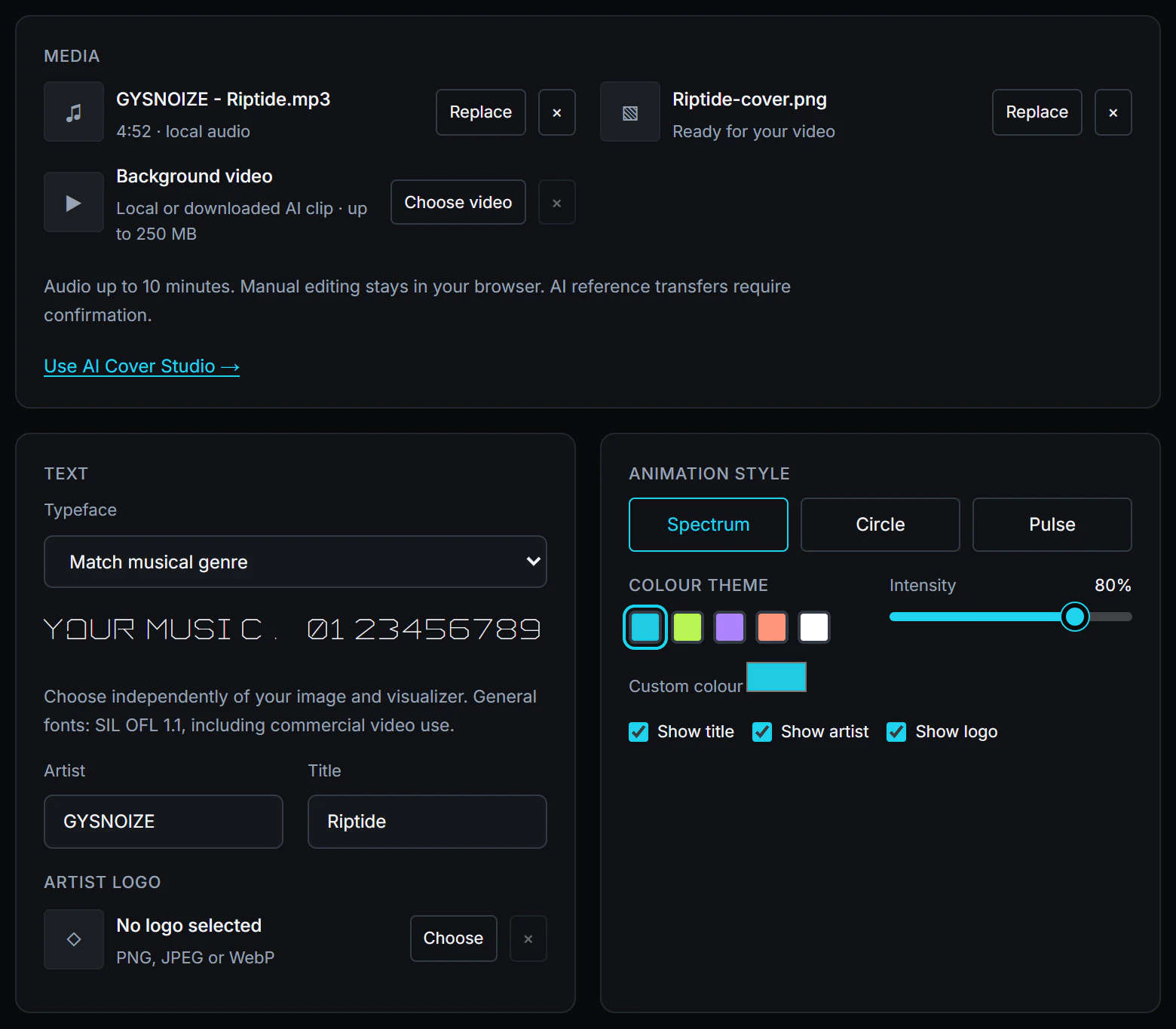
Under Media, choose the audio file — WAV, MP3, FLAC and other common formats, up to 10 minutes — and a cover or background image (PNG, JPEG or WebP). An optional background video can be a local clip or a downloaded AI clip of up to 250 MB. The files are read on your own device; nothing is uploaded for manual editing. Under Text, type the artist and title, choose a typeface (one that matches the genre, or Barlow, Rajdhani, Cinzel, Orbitron, Audiowide, Black Ops One or Road Rage, all under the SIL Open Font License) and optionally add an artist logo.
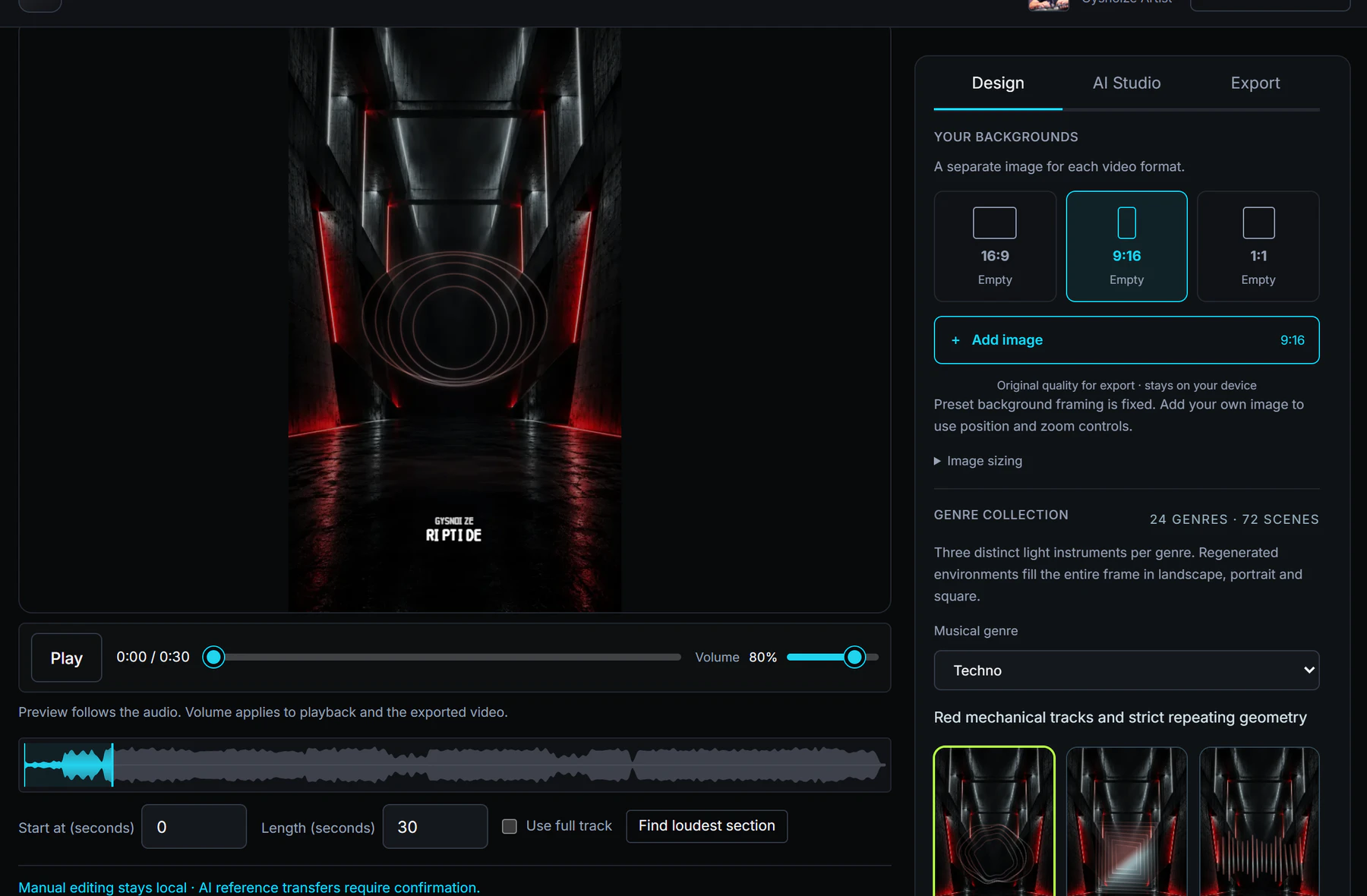
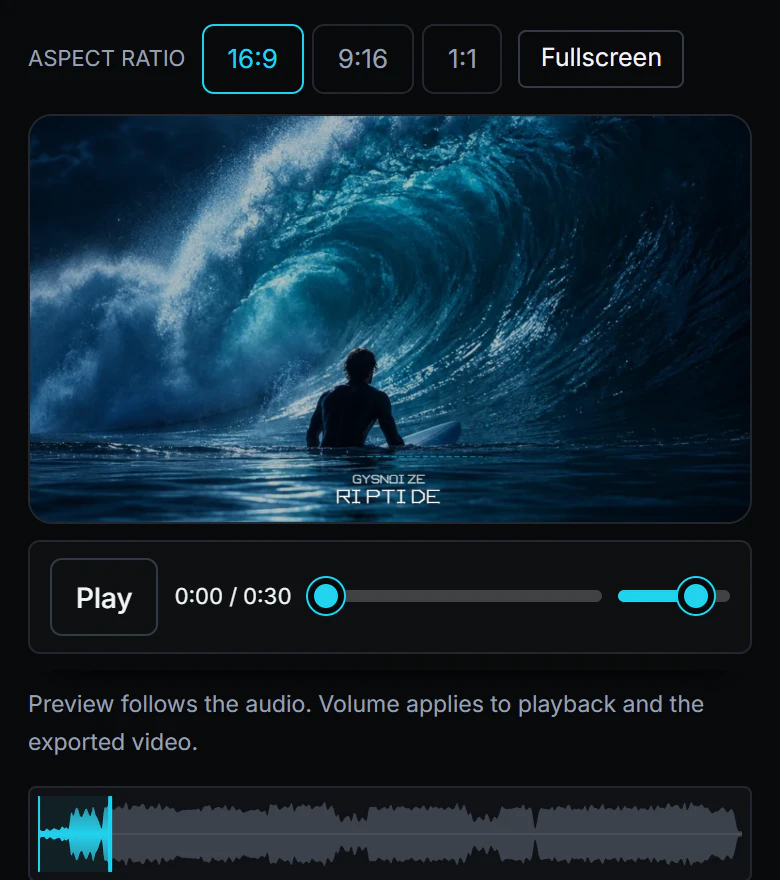
Step 2: Choose the format, the background and the section
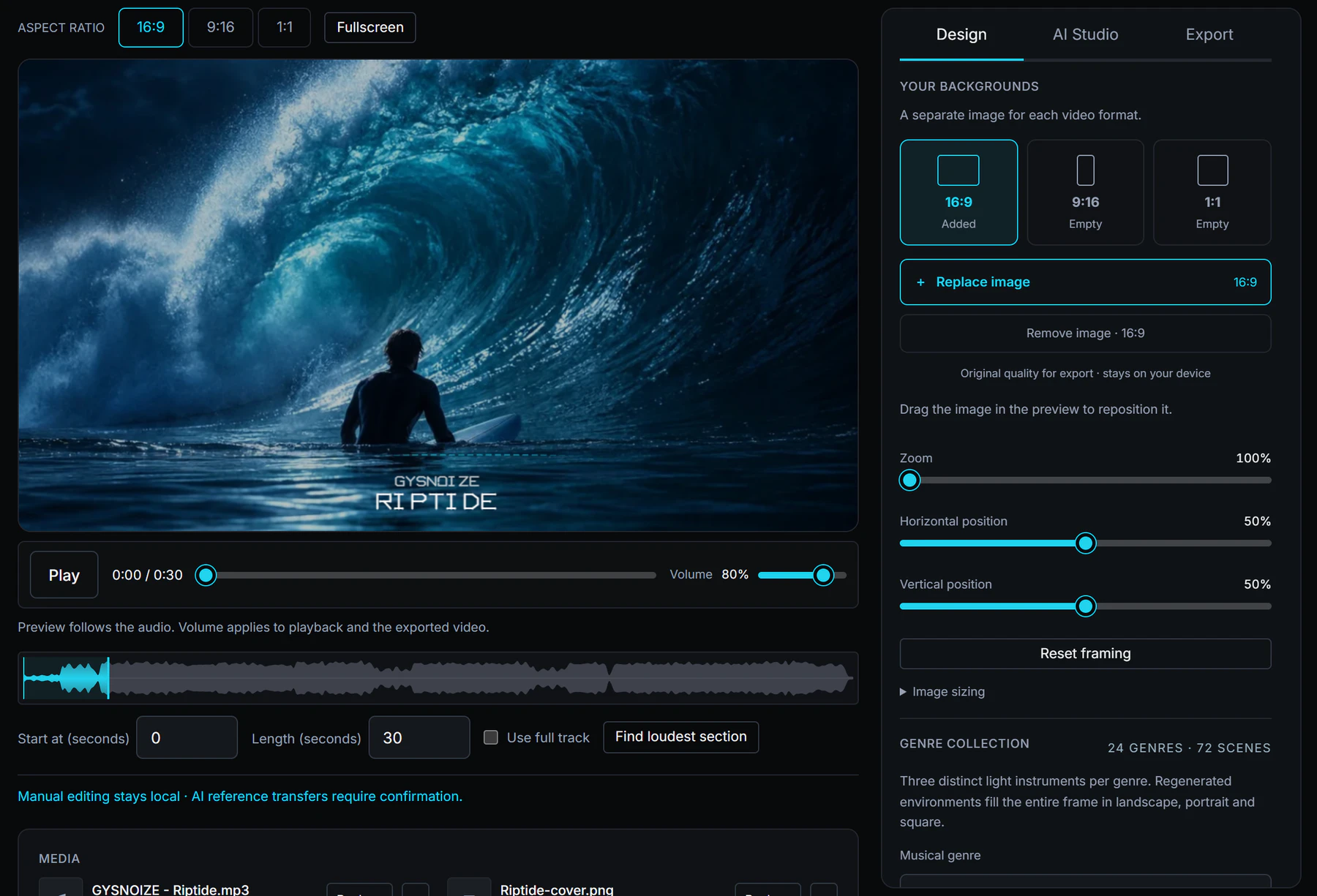
Switch between 16:9, 9:16 and 1:1 above the preview. Each format can have its own background image, with zoom and position controls. Below the preview, the waveform shows the track: set Start and Length, tick Use full track, or press Find loudest section to jump to the strongest part for a short clip.
Step 3: Pick a genre scene and a look
The genre collection holds 24 genres and 72 scenes — three per genre — that fill the frame in landscape, portrait and square. A scene direction (Full-screen scene, Cover spotlight, Nature / orbital, Night / spectrum or Cinematic / clean) builds a scene from your own image, with camera motion, a background shade and an audio-reactive spectrum. The animation style — Spectrum, Circle or Pulse — sets how the visual responds to the music, with a colour theme and intensity.
Step 4: Export the MP4
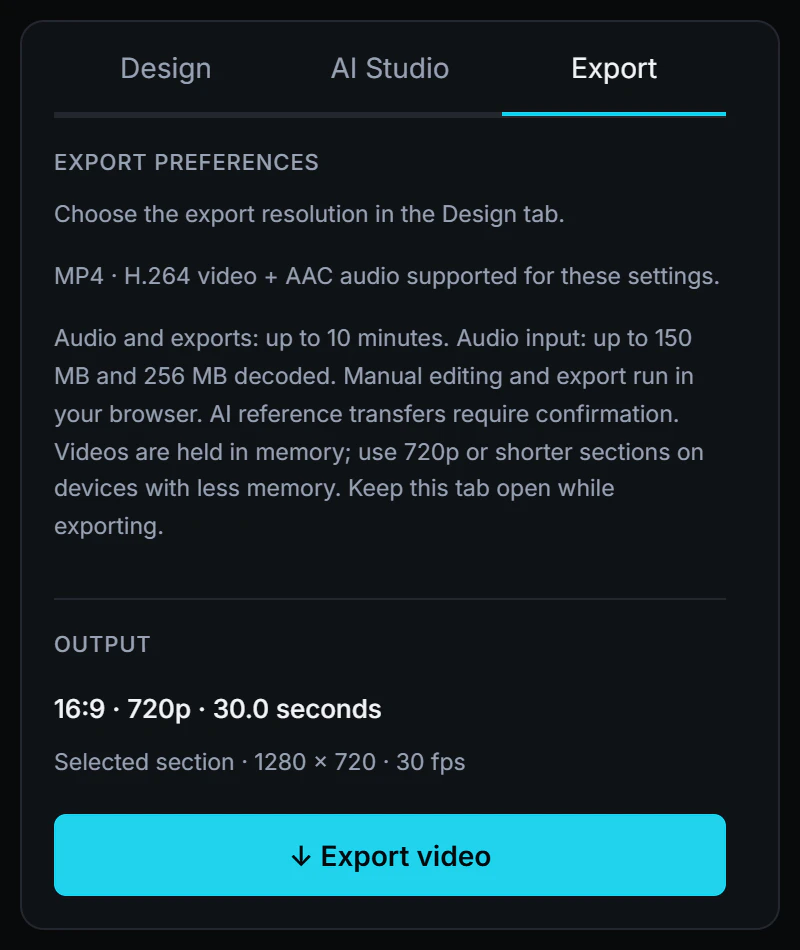
The Export tab shows exactly what will be written: format, resolution, length and frame rate. The studio exports MP4 with H.264 video and AAC audio, at 720p or 1080p and 30 frames per second. The export runs in your browser, so keep the tab open; on devices with less memory, use 720p or a shorter section. The studio is honest about one detail: choosing 1080p does not add detail that the source images do not have.
The result: a real export
This is a 15-second section of «Riptide» exported from Music Video Studio in 16:9, re-encoded smaller for this page. It does not start by itself and makes no sound until you press play.

What can you actually create with GYSNOIZE Music Video Studio?
The studio has two halves that work and are charged differently. The Design tab builds a visualizer from your own track and images without AI. The AI Studio tab holds the generative tools.
| Non-AI (Design) | AI Studio | |
|---|---|---|
| What you make | An audio-reactive visualizer from your track, image or background video | Custom AI visualizer, video clip, photo performance, an AI video scene; AI cover artwork |
| Inputs | Audio up to 10 minutes, PNG/JPEG/WebP images, optional background video up to 250 MB | A description, your song and reference images, sent only after you confirm |
| Formats | 16:9, 9:16 and 1:1 | Depends on the tool; scenes can be used as a background video |
| Where it runs | In your browser; files stay on your device | With an external AI video provider |
| Output | MP4, H.264 + AAC, 720p or 1080p, 30 fps | Generated clips or artwork to review and download |
| How it is paid | Per video; all formats of the same video included. Included in Artist Pro, DJ Pro and DJ Pro + Booking | Always from AI credit, priced per 5-second scene or per design, in every plan |
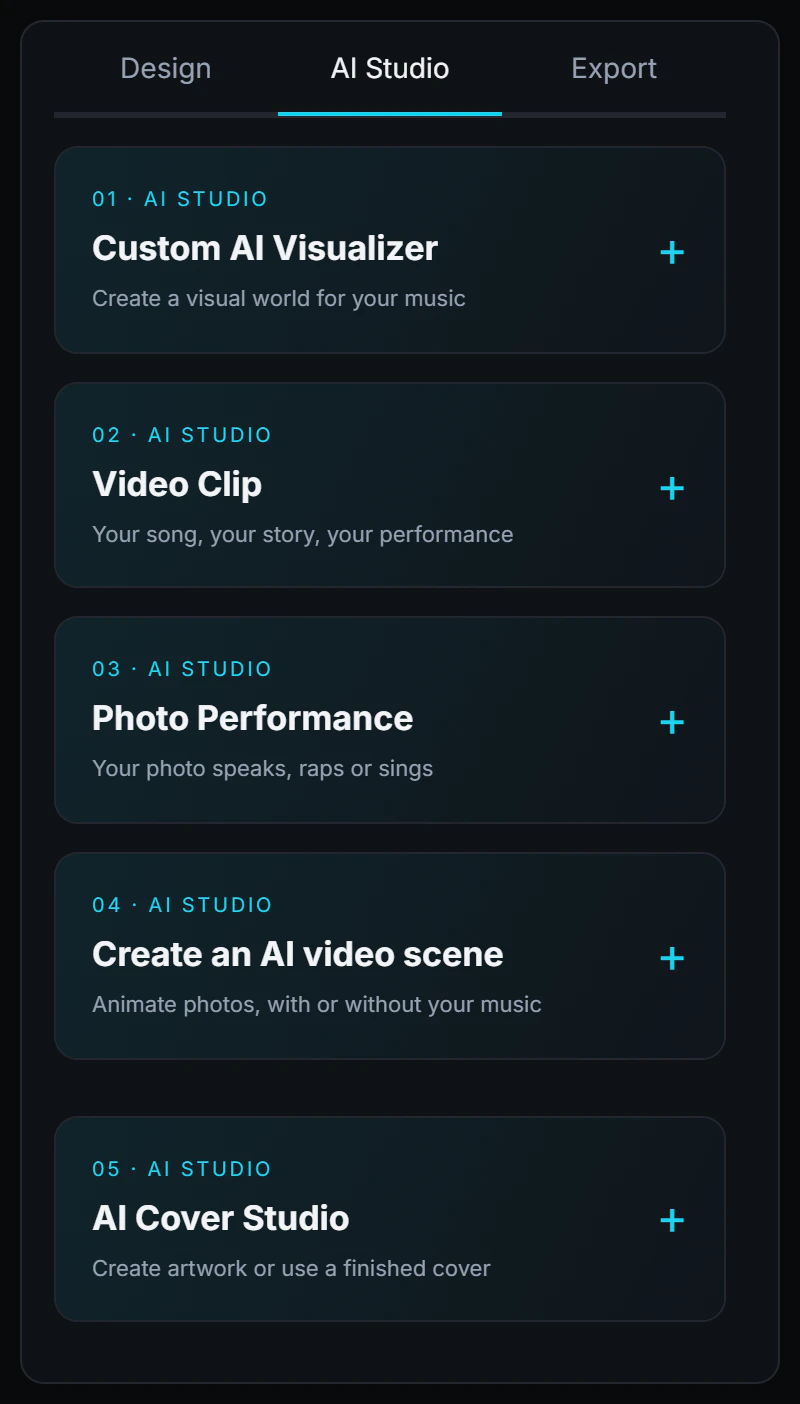
At the time of writing, a non-AI video costs €4.99 outside the plans that include it, and covers every aspect ratio of that same video; current prices are on the pricing page. AI generation is never part of a subscription. The studio does not create synchronised lyric videos, and it does not publish to YouTube or social networks for you: you download the MP4 and upload it yourself.
From track to video: a release plan
- Full version — a 16:9 visualizer of the whole track for YouTube, with Use full track ticked.
- Vertical teaser — a 9:16 clip from Find loudest section, with its own vertical background.
- Square variation — a 1:1 version for feeds where it helps.
All three share the artwork, colours and typeface, without being crops of one another. Point viewers to one destination — an artist landing page with your streaming links works well — and if the video announces a show, keep the dates consistent with your booking calendar.
Before you export: a checklist
- Audio starts and ends where it should.
- Important imagery stays visible on desktop and on a phone.
- Artist, title and credits are spelled correctly.
- No black frames, frozen elements or uncomfortable flashing.
- The aspect ratio matches the destination.
- AI footage, if any, is consistent enough for the style.
- After export, play the downloaded file from start to finish.
For YouTube, Google publishes recommended upload encoding settings; MP4 with H.264 video and AAC audio is a widely used configuration. Other platforms process uploads in their own way, so check each destination's current requirements.
YouTube, Instagram Reels and TikTok
On YouTube, a full-length video benefits from an accurate title such as «Artist – Title (Official Visualizer)», a fitting thumbnail and correct credits; use format labels truthfully. On Reels and TikTok, a short vertical clip with a strong opening image and readable text introduces one musical moment. Keep artwork, naming and style consistent so listeners recognise the same release everywhere.
Common mistakes to avoid
- Visuals louder than the song. Choose motion and pacing that suit the arrangement.
- Wrong aspect ratio. A wide video cropped to vertical loses subjects and text.
- Inaccurate credits. Wrong names or titles make promotion look careless.
- Material without rights. Music, footage, photos, logos and faces all need permission.
- Treating AI output as final. Generated scenes need review and direction.
- No next step for the viewer. Make the full release easy to find.
- Confusing clicks with streams. A click on a link is not a stream; do not overstate results.
How to evaluate a music video maker
- Does it make the kind of video you need — a visualizer, a clip, a cinematic scene?
- Can you use your own cleared audio and images, and in which formats?
- Are the outputs right for your destinations — ratio, resolution, length, file type?
- Can you preview and correct before exporting?
- Which costs apply — subscription, per-video export or AI credit?
- How are unreleased tracks and private images handled?
- Does it work on the devices you use?
Test any tool with your own material before relying on it for a release.
Where Music Video Studio fits in GYSNOIZE
GYSNOIZE Recordings is an independent label founded in Italy in 2013 by electronic music producer and DJ GYSNOIZE. Music Video Studio covers one visual part of the release: video that accompanies and promotes the music. Next to it, AI Cover Studio makes the artwork, artist landing pages give viewers a destination, booking management handles live shows, and royalty tools handle the label's accounting. They solve different problems for the same artist. More about the label on the About page.
Frequently asked questions
What is the difference between a visualizer and a music video?
A visualizer accompanies a track with motion design or imagery, usually without a story or filmed performance. A music video may contain live action, animation, a narrative or performance scenes.
Can I make a music video without filming anything?
Yes. A visualizer can be built from your track and artwork alone. In Music Video Studio the non-AI half needs only an audio file and an image or a genre scene.
Do I need AI to create a visualizer?
No. AI is optional. The Design tab of Music Video Studio makes a complete visualizer without any AI.
Can I use my album cover?
Yes, if you have the right to use it. The «Riptide» example above uses the cover made for the single, with a separate background for each format.
Does the video follow the beat?
The Spectrum, Circle and Pulse styles react to the audio as it plays. That is audio-reactive motion, not a guarantee that every cut lands on a beat, so watch the preview.
Which aspect ratio for YouTube and for Reels?
16:9 is the usual choice for long-form YouTube videos; 9:16 for Reels, Shorts and TikTok. Check each platform's safe areas.
Are non-AI videos and AI generation charged the same way?
No. A non-AI video is paid per video or included in Artist Pro, DJ Pro and DJ Pro + Booking. AI generation is always paid from AI credit and is never included in a plan.
Can I use AI-generated video commercially?
It depends on the provider's terms, the material you supplied, the law and what the video shows. Review rights and the platform's disclosure rules before publishing.
Does a visualizer guarantee more streams?
No. Video can support discovery, but results depend on the music, the audience and the campaign.
Turn your next release into video
Start from the song, plan one concept, make each format its own composition and check the file before you publish. Music Video Studio covers the visualizer side without AI and keeps AI as a separately priced option for when you want it.